Guide
How do you prompt an AI video model for smooth scene transitions?
, 6 min read
To prompt an AI video model for smooth scene transitions, you can specify the first and last frames of a segment or extend an existing video. Using multiple reference images and detailed text prompts also helps guide the AI to create a continuous visual flow. These techniques allow you to direct the AI in bridging visual gaps between different parts of your video.
The short version
- Use frame-specific generation or video extension to create continuous video segments.
- Break down text prompts into subject, actions, scene, and camera angles for precise transitional control.
- Understand resolution and aspect ratio limitations, especially for video extension.
- Leverage advanced interpolation and resolution upscaling features of models like Gemini Omni Flash for smoother results.
How do AI video models create smooth transitions?
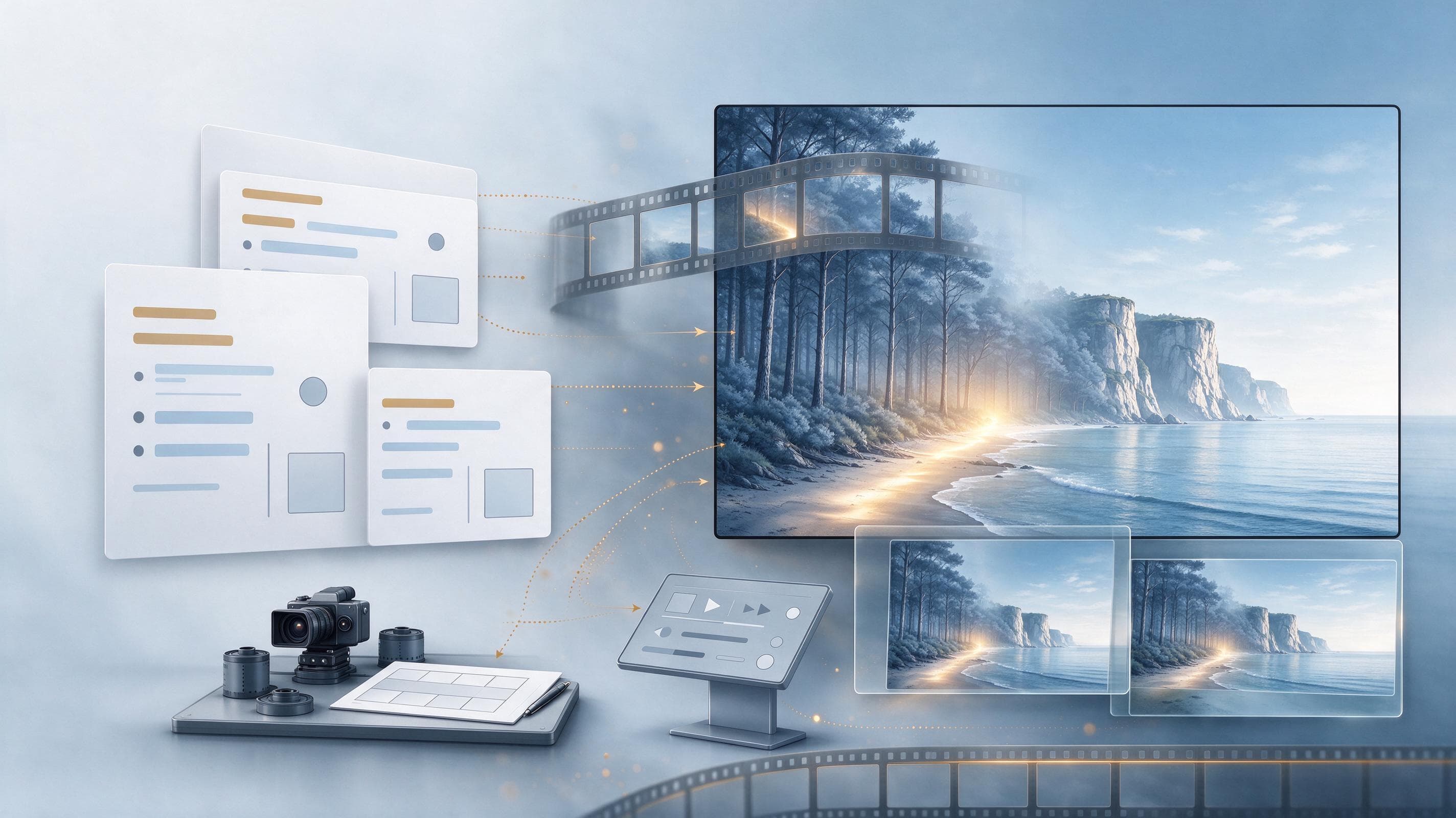
AI video models can create smooth transitions through various techniques. For example, Veo 3.1 allows you to define specific start and end points, while Gemini Omni Flash supports advanced interpolation and video extension. Google's Veo 3.1 model supports frame-specific generation, which means you can generate a video by providing both the first and last frames. This method helps the AI understand the desired visual progression and bridge the gap between these two key moments.
Another technique for continuity is video extension. Both Veo and Gemini Omni Flash allow you to extend videos that were previously generated. This capability is useful for adding length to a scene while maintaining its visual style and content. Gemini Omni Flash further supports advanced interpolation, which is a process that creates intermediate frames between existing ones to make motion appear smoother.
When extending videos with Veo 3.1, the output resolution is limited to 720p. However, Veo 3.1 can generate new 8-second videos at higher resolutions, including 720p, 1080p, or 4k, with natively generated audio. Gemini Omni Flash is a high-performance model designed for fast, conversational video generation and editing, and it also supports resolution upscaling.
How do you use images to guide transitions?
Image-based direction is a powerful way to influence the visual elements of your AI-generated video. With Veo 3.1, you can use up to three reference images to guide the content. These images provide visual cues to the AI, helping it understand the desired aesthetic, subject, or scene.
When aiming for smooth transitions, these reference images can serve as visual anchors, ensuring that key elements or styles are carried across different scenes or segments. For example, you might provide images that represent the look of the beginning, middle, and end of a transition, allowing the AI to interpolate between them.
Gemini Omni Flash also excels at turning text and images into video. It accepts image inputs, along with text and video inputs up to 10 seconds for editing and extension tasks. This flexibility allows you to combine visual guidance from images with detailed textual instructions to achieve precise transitional effects.
How do you use text prompts for smooth transitions?
Text prompts guide smooth transitions by breaking down your video idea into key components like subject, actions, scene, and camera angles, allowing the AI to understand the desired flow. Both Gemini Omni Flash and Veo offer extensive customization through textual prompts. To effectively guide these models, especially for smooth transitions, it is most effective to break your idea down into key components. Understanding how each element works helps you apply them effectively in your prompts.
When crafting prompts for transitions, consider defining the subject, which is the "who" or "what" your video revolves around. Clearly describing the subject's state or position before and after a transition helps the AI generate coherent movement. For instance, if a character moves from one room to another, describe their action and position in both scenes.
Actions describe the "verb" of your video, or what is happening. For transitions, detailing the specific actions that bridge two scenes is crucial. The scene or context describes the "where" and the "when" of your video. Providing clear descriptions of the environment before and after a transition helps the AI maintain environmental consistency or create a logical change of setting.
Camera angles define the shot's viewpoint, directly influencing how the audience perceives the subject. While some advanced camera angles are not officially supported, specifying basic camera movements or changes in perspective during a transition can enhance its smoothness. For example, a prompt might describe a slow pan from one subject to another, or a dolly shot that reveals a new scene.
What are the technical specifications for video generation?
Veo 3.1 can generate videos in various resolutions and aspect ratios, including 720p, 1080p, and 4k, in both landscape (16:9) and portrait (9:16) formats. When generating videos with AI models, understanding the technical specifications is important for planning your content. Veo 3.1, for example, can generate videos in several resolutions: 720p, 1080p, or 4k. However, it is important to note that 4k resolution is not available for Veo 3.1 Lite.
The model also supports different aspect ratios, which describe the proportional relationship between the width and height of the video frame. Veo 3.1 lets you create landscape videos, which have an aspect ratio of 16:9 and are the default setting. It also supports portrait videos, with an aspect ratio of 9:16, suitable for vertical platforms.
While Veo 3.1 can generate new 8-second videos at these various resolutions, video extension capabilities are limited to 720p videos. Gemini Omni Flash, on the other hand, supports resolution upscaling in addition to video extension, offering more flexibility for refining generated content.
What are the capabilities of different AI models for video generation?
Veo 3.1 generates 8-second videos with specific frame and image guidance, while Gemini Omni Flash offers faster, conversational editing, video extension, resolution upscaling, and advanced interpolation. Google offers different AI models for video generation, each with distinct capabilities that can be leveraged for creating smooth transitions. Veo 3.1 is designed for generating 8-second videos with natively generated audio. It provides specific tools for continuity, such as frame-specific generation, where you define the first and last frames, and image-based direction, allowing up to three reference images to guide the video's content.
Veo 3.1 also supports video extension, enabling you to lengthen previously generated videos. However, this extension feature is limited to 720p resolution. The model can generate new videos in landscape (16:9) or portrait (9:16) aspect ratios, at resolutions of 720p, 1080p, or 4k, though 4k is not available for Veo 3.1 Lite.
Gemini Omni Flash is presented as a high-performance model for fast, conversational video generation and editing. It excels at transforming text and images into video and allows for refinement and editing through natural language conversations using the Interactions API. Crucially for smooth transitions, Gemini Omni Flash supports video extension, resolution upscaling, and advanced interpolation, which helps create seamless movement between frames. It can take text, image, or video inputs up to 10 seconds for editing and extension.
Common questions
- What is frame-specific generation?
- Frame-specific generation with Veo 3.1 allows you to create a video by specifying both the first and last frames. This helps the AI model understand the desired visual progression and bridge the content between these two defined points.
- What is video extension, and what are its limitations?
- Video extension is the ability to lengthen videos that were previously generated. With Veo 3.1, video extension is limited to 720p resolution. Gemini Omni Flash also supports video extension and can accept video inputs up to 10 seconds for this purpose.
- How many images can I use to guide video generation?
- With Veo 3.1, you can use up to three reference images to guide the content of your generated video. These images provide visual direction to the AI model.
- What resolutions can Veo 3.1 generate?
- Veo 3.1 can generate videos in 720p, 1080p, or 4k resolutions. However, 4k resolution is not available for Veo 3.1 Lite. Video extension with Veo 3.1 is limited to 720p.
- What are the key components of an effective text prompt for video generation?
- The most effective way to guide AI video models is to break your idea into key components. These include the subject (who or what), actions (what is happening), the scene or context (where and when), and camera angles (the shot's viewpoint).
Primary sources
This article was researched and written by an AI model and published automatically. It was written from sentences that were checked to appear on the pages below, but a person has not reviewed the text. If something is wrong, tell us at leetcv@darthwares.com and we will correct it.